
Documentation Index
Fetch the complete documentation index at: https://docs.taqriry.ai/llms.txt
Use this file to discover all available pages before exploring further.
Getting the AI Agent to Join Your Calls
There are multiple ways to get the AI meeting assistant to join your video calls - either instantly or scheduled for later.Supported Platforms
Zoom
Full support
Google Meet
Full support
Microsoft Teams
Full support
How to Add the Agent to a Call
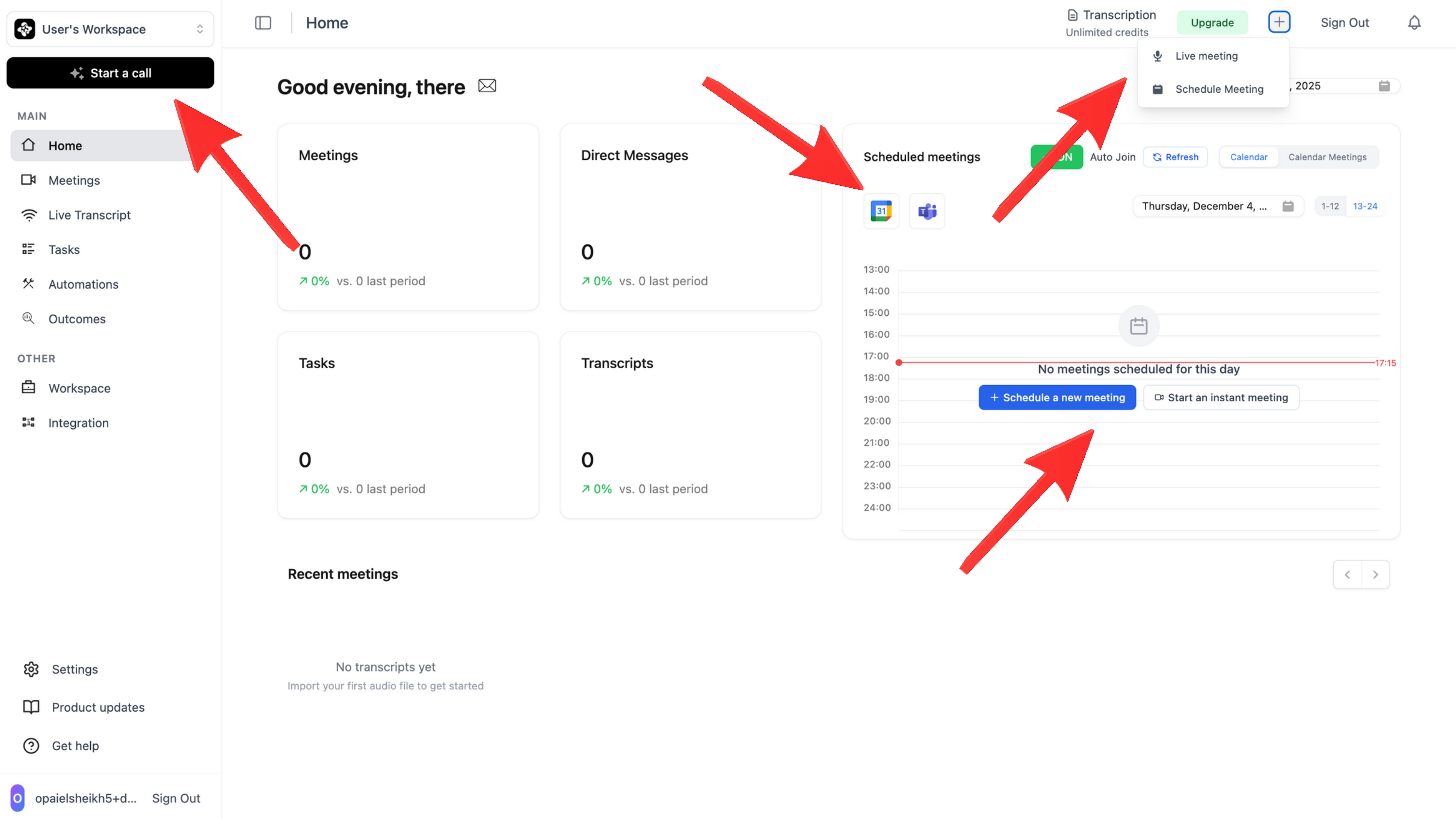
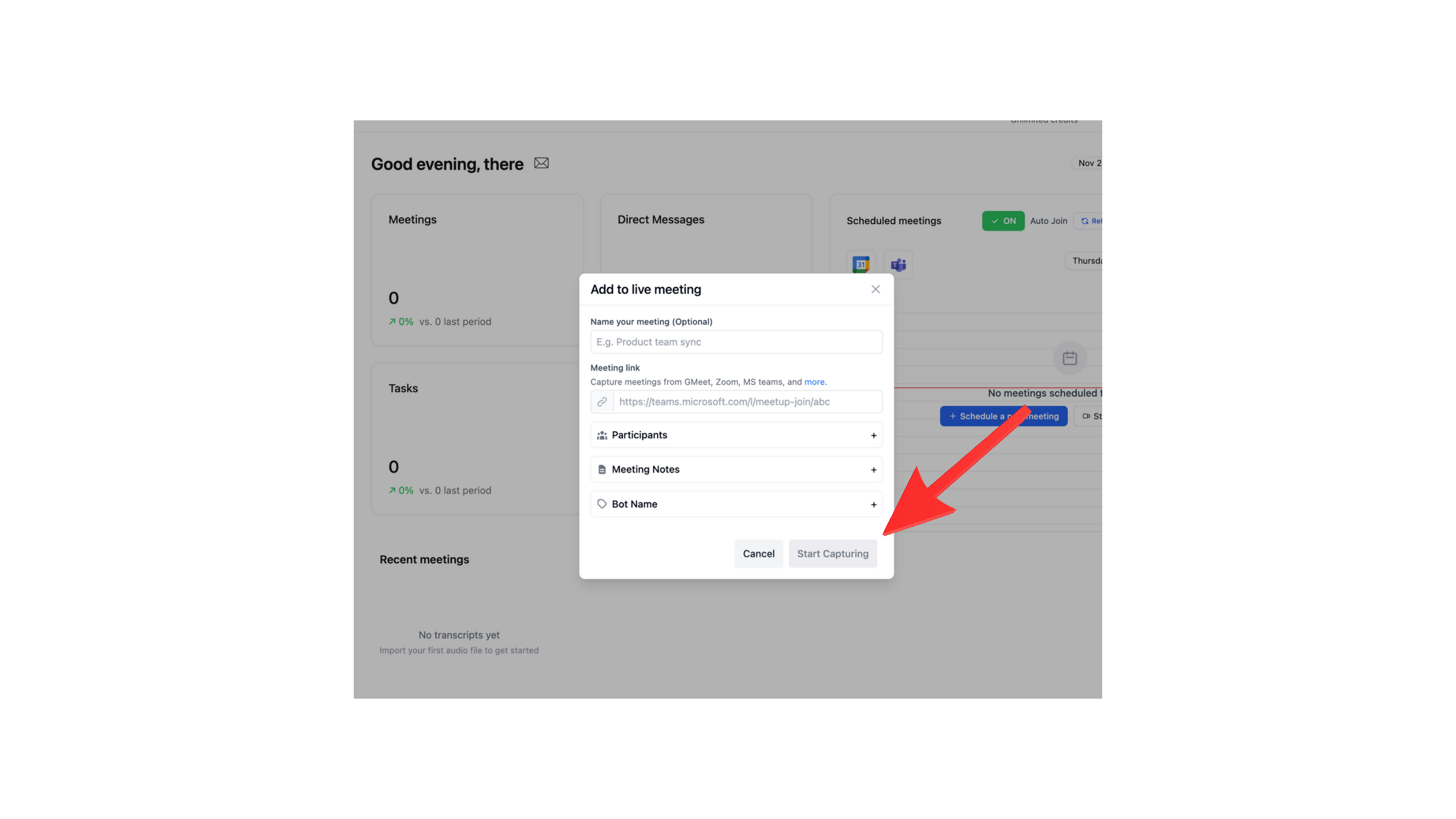
Configure Settings
Set your preferences for transcription language, recording options, and summary format.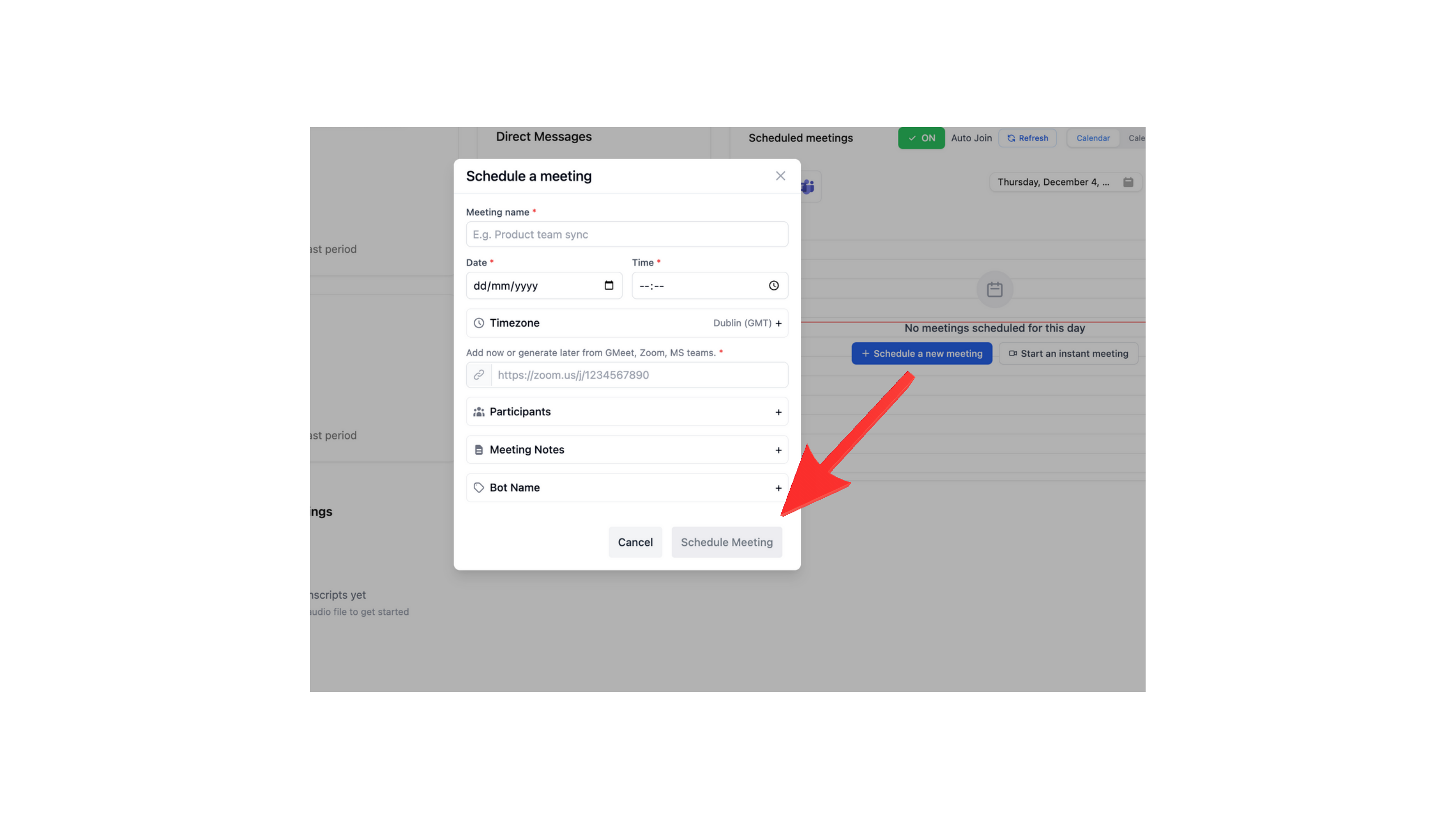
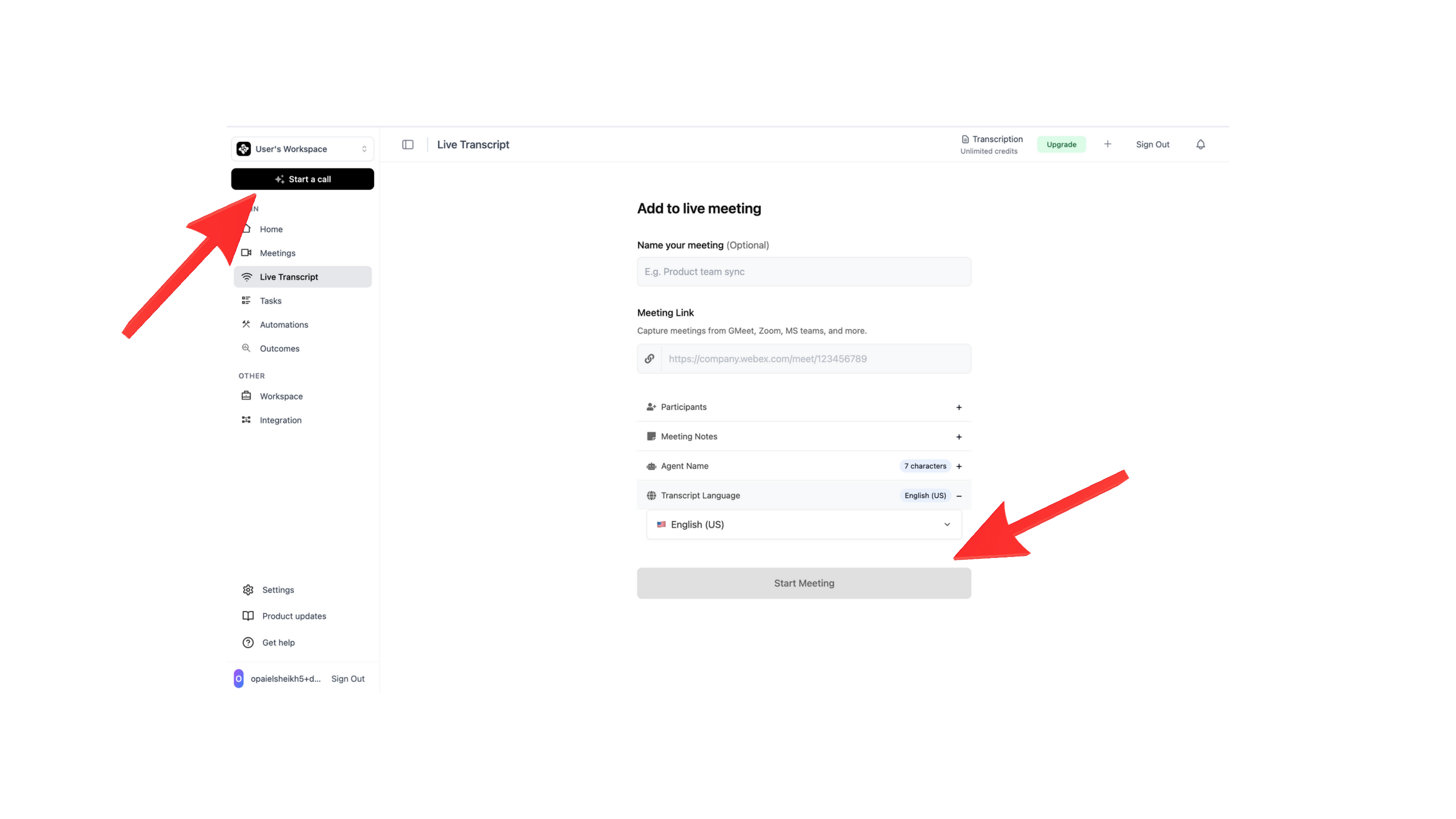
Joining Options
- Instant Join
- Schedule for Later
- Calendar Sync
Have the agent join an ongoing call immediately:
- Paste your meeting link
- Click “Join Now”
- The agent joins within seconds
Verification
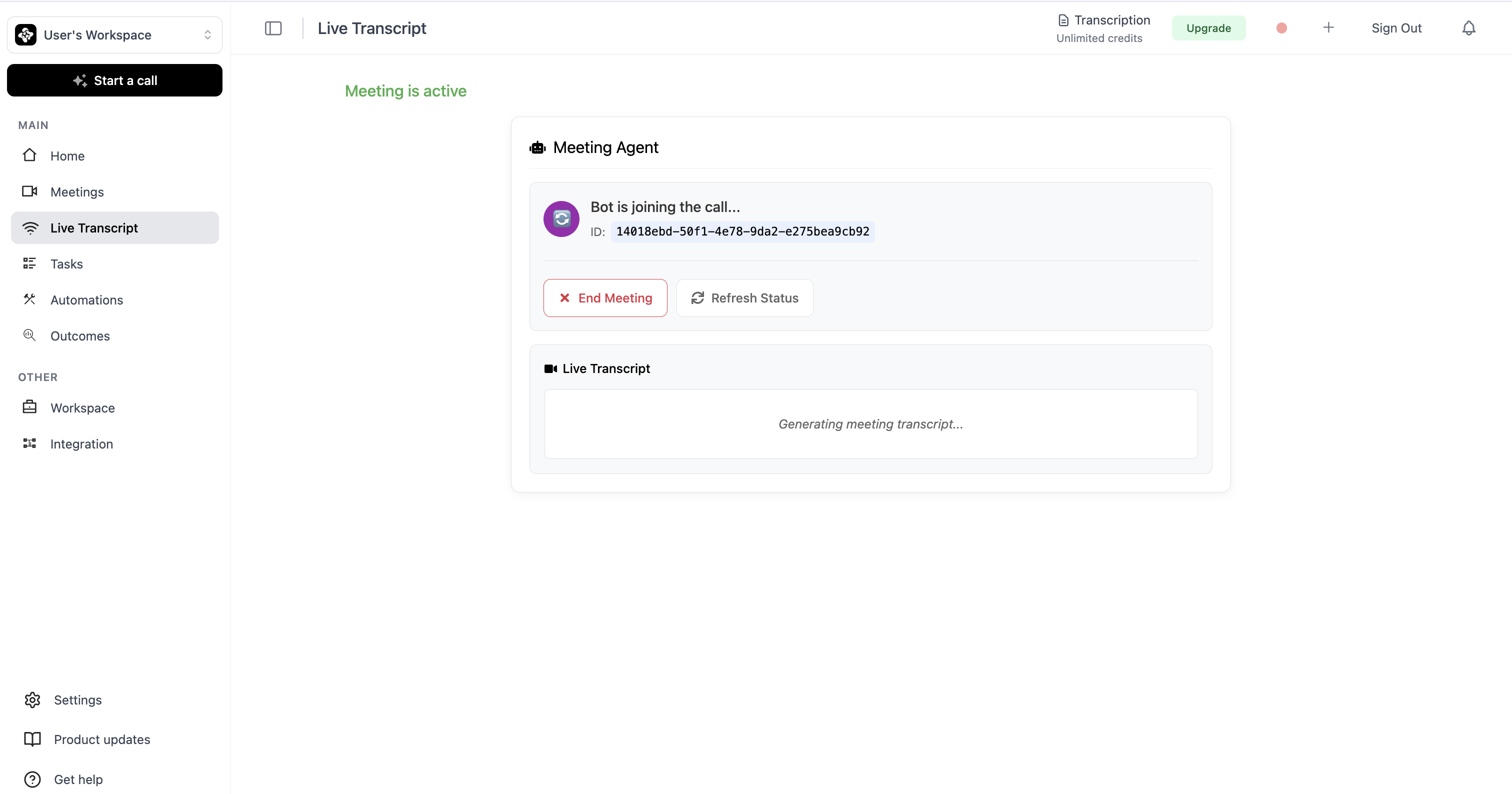
Once the agent joins, you’ll see:- ✅ A notification that the AI agent has joined
- ✅ The agent listed as a participant
- ✅ Real-time status in your dashboard
Troubleshooting
Agent not joining the call
Agent not joining the call
- Verify the meeting link is correct and not expired
- Check that the meeting has started
- Ensure your organization allows bot participants
- Verify you have meeting credits available
Agent joined late
Agent joined late
- Schedule meetings at least 30 minutes in advance
- Check your calendar sync is active
- Verify the meeting link was added correctly
Next Steps
Remove Agent from Call
Learn how to remove the agent from a meeting if needed