
Documentation Index
Fetch the complete documentation index at: https://docs.taqriry.ai/llms.txt
Use this file to discover all available pages before exploring further.
Tool Integrations
Connect the AI meeting assistant with your existing tools to automate workflows and centralize information.Available Integrations
Video Platforms
Zoom
Video calls (Auto-connected)
Microsoft Teams
Video calls (Auto-connected)
Webex
Video calls (Auto-connected)
Communication & Notes
Slack
Send notes to Slack (Beta)
Notion
Update Notion
Gmail
Sync with Gmail (Auto)
Confluence
Sync with Confluence
CRM Integrations
HubSpot
Update HubSpot
Salesforce
Update Salesforce
Affinity
Sync with Affinity CRM
Close
Sync with Close CRM
Copper
Sync with Copper CRM
Freshsales
Sync with Freshsales CRM
Project & Task Management
Asana
Sync with Asana
Monday.com
Create items (Beta)
Linear
Create issues in Linear
Jira
Create issues in Jira
ClickUp
Create tasks in ClickUp
Trello
Create cards in Trello
Storage & Database
Airtable
Sync with Airtable
Dropbox
Sync with Dropbox (Beta)
Greenhouse
Sync with Greenhouse ATS
Setting Up Integrations
General Setup Process
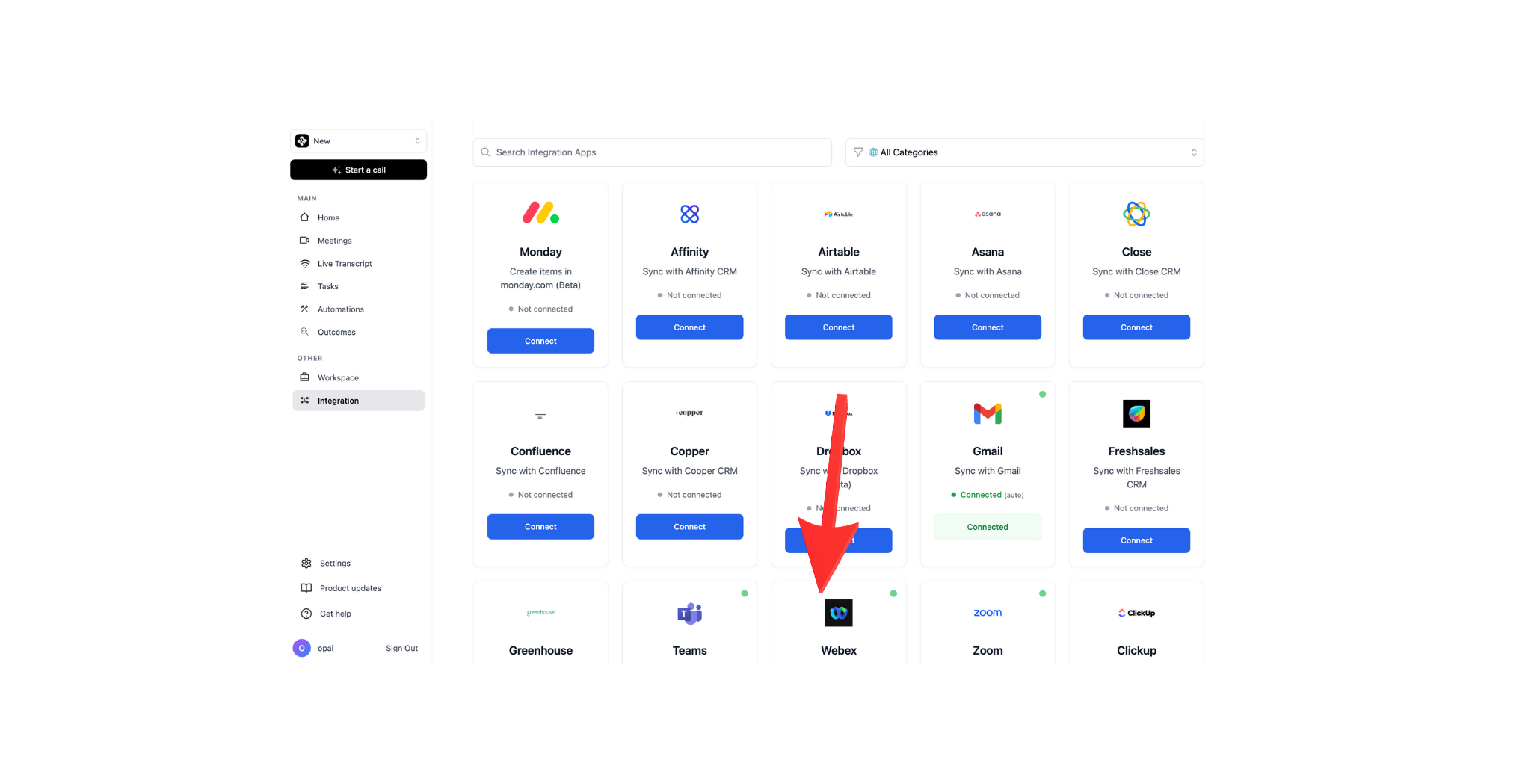
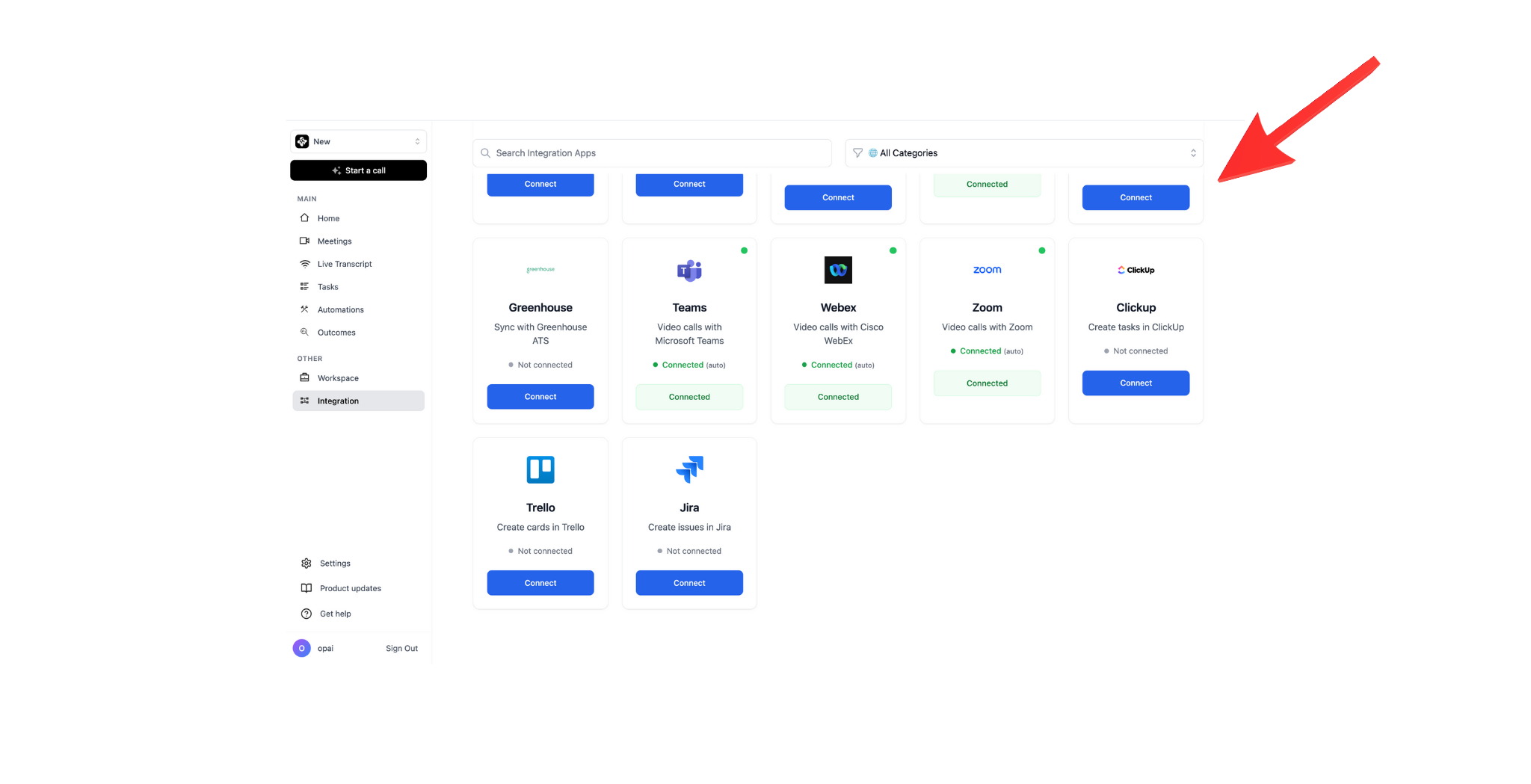
Navigate to Integrations
Go to Settings → Integrations and browse the available tools you can connect.
Popular Integrations
Slack Integration
Send meeting summaries to Slack channels:Setup
- Settings → Integrations → Slack
- Click “Connect to Slack”
- Authorize the app in your workspace
- Choose default channel for summaries
Configuration
Usage
After each meeting:- Summary automatically posted
- Action items tagged to assignees
- Link to full transcript
- Recording embedded (if enabled)
Salesforce Integration
- Setup
- Features
- Field Mapping
- Connect Salesforce account
- Map meeting fields to Salesforce objects
- Choose which meetings to sync:
- All meetings
- Meetings with external participants
- Meetings tagged as “Sales”
- Configure sync frequency
HubSpot Integration
Track sales calls in HubSpot CRM:Features
- Log calls to contacts automatically
- Create deals from qualified conversations
- Update deal stages based on call outcomes
- Track email sequences effectiveness
- Generate activity reports
Configuration
- Connect HubSpot account
- Map contacts by email
- Set auto-logging rules:
- Configure data sync:
- Call duration
- Call notes (summary)
- Call outcome
- Next steps
- Recording link
Asana Integration
Turn action items into Asana tasks:Setup
- Settings → Integrations → Asana
- Connect Asana account
- Select workspace
- Choose default project
Automatic Task Creation
After meetings:- ✅ Action items become Asana tasks
- ✅ Assignees auto-assigned
- ✅ Due dates populated
- ✅ Task description includes context
- ✅ Linked to meeting transcript
Tasks include a backlink to the meeting for full context.
Notion Integration
Save meetings to Notion workspace:Options
Database Sync
Database Sync
Create meetings database:
- Each meeting = new page
- Properties: Date, Participants, Duration, Topics
- Includes: Transcript, Summary, Action Items
- Automatic categorization
Page Creation
Page Creation
Add to existing pages:
- Append to daily notes
- Add to project pages
- Update team wiki
- Create in specific database
Template Usage
Template Usage
Use Notion templates:
- Meeting notes template
- Project update template
- Sales call template
- Custom templates
Google Drive Integration
Store recordings and transcripts:Setup
- Connect Google Drive
- Choose destination folder
- Configure file organization:
- Set permissions
- Enable auto-upload
File Types Uploaded
- Video recordings (MP4)
- Audio files (MP3)
- Transcripts (PDF, DOCX)
- Summaries (PDF)
- Action items (CSV)
Advanced Integration Features
Zapier Integration
Connect to 5000+ apps:- Settings → Integrations → Zapier
- Get API key
- Create Zap in Zapier:
- Trigger: New Meeting Completed
- Actions: Your choice
- Popular Zaps:
- Meeting summary → Gmail
- Action items → Todoist
- Recording → Dropbox
- Highlights → Evernote
Webhook Integration
For custom integrations:Setup Webhook
- Settings → Integrations → Webhooks
- Add webhook URL
- Choose events:
- meeting.completed
- meeting.started
- action_item.created
- transcript.ready
- Add authentication (optional)
- Test webhook
- Enable
Integration Settings
Conditional Integration
Send data only when conditions are met:Data Filtering
Choose what data to send:- Full Data
- Summary Only
- Custom Selection
- Complete transcript
- Full recording
- All metadata
- Participant details
- Complete summary
Managing Integrations
View Connected Integrations
- Settings → Integrations
- “Connected” tab
- See all active integrations
- View sync status
Edit Integration
- Click on integration
- Modify settings:
- Change default destination
- Update sync rules
- Adjust data mapping
- Save changes
Disable Integration
Temporarily stop syncing:- Integration Settings
- Toggle “Enabled” to OFF
- Integration paused (can re-enable anytime)
Disconnect Integration
Completely remove:- Integration Settings
- Click “Disconnect”
- Confirm disconnection
- Revoke access in the integrated tool
Security & Permissions
Data Privacy
Permission Management
Control access:- Integration → Permissions
- Set data access level:
- Read only
- Write & create
- Full access
- Limit to specific meetings
- Set user restrictions
Audit Log
Track integration activity:- Settings → Integrations → Audit Log
- View all integration events:
- Data sent
- Failed syncs
- Permission changes
- User actions
- Export log for compliance
Troubleshooting
Integration not syncing
Integration not syncing
Check:
- Integration is enabled
- Authentication is valid
- Sync rules are not blocking
- Destination exists (channel, folder, etc.)
Missing data in integrated tool
Missing data in integrated tool
Verify:
- Data filtering settings
- Field mapping is correct
- Target tool accepts data format
Authentication expired
Authentication expired
Fix:
- Re-authenticate in Settings
- Grant necessary permissions
- Check token expiration
Duplicate entries created
Duplicate entries created
Cause: Multiple sync rules or integrationsSolution: Review integration rules, disable duplicates
Next Steps
Export Data
Learn about manual data export options
API Documentation
Build custom integrations