
Documentation Index
Fetch the complete documentation index at: https://docs.taqriry.ai/llms.txt
Use this file to discover all available pages before exploring further.
Export Meeting Data
Learn how to export individual meetings or bulk data via email or download.Export Methods
Direct Download
Download files directly to your computer
Email Delivery
Receive export files via email
Cloud Storage
Export to Google Drive, Dropbox, etc.
Bulk Export
Export all meetings at once
Export Single Meeting
From Meeting Dashboard
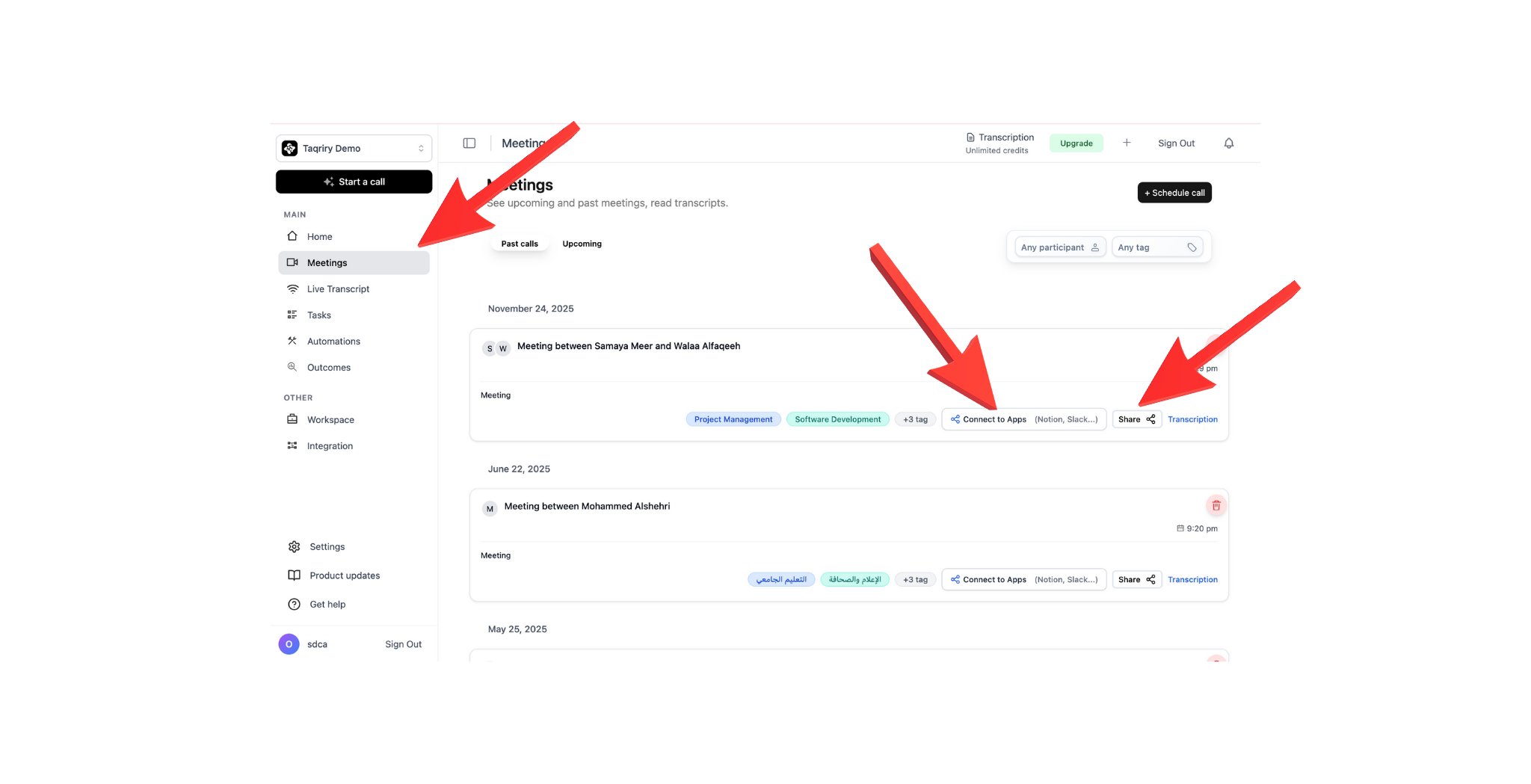
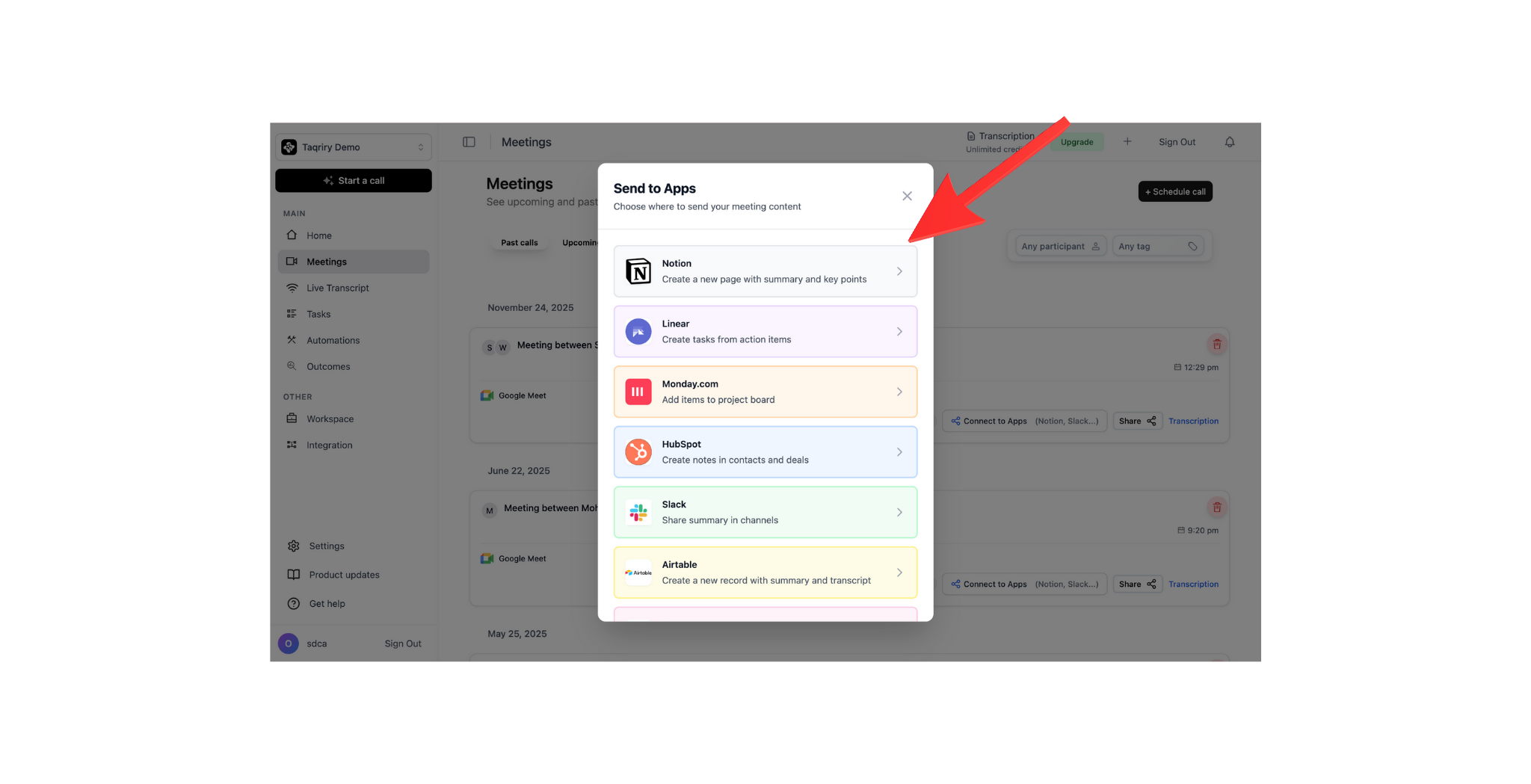
Choose What to Export
Select the content you want to export: Recording, Transcript, Summary, or Complete package.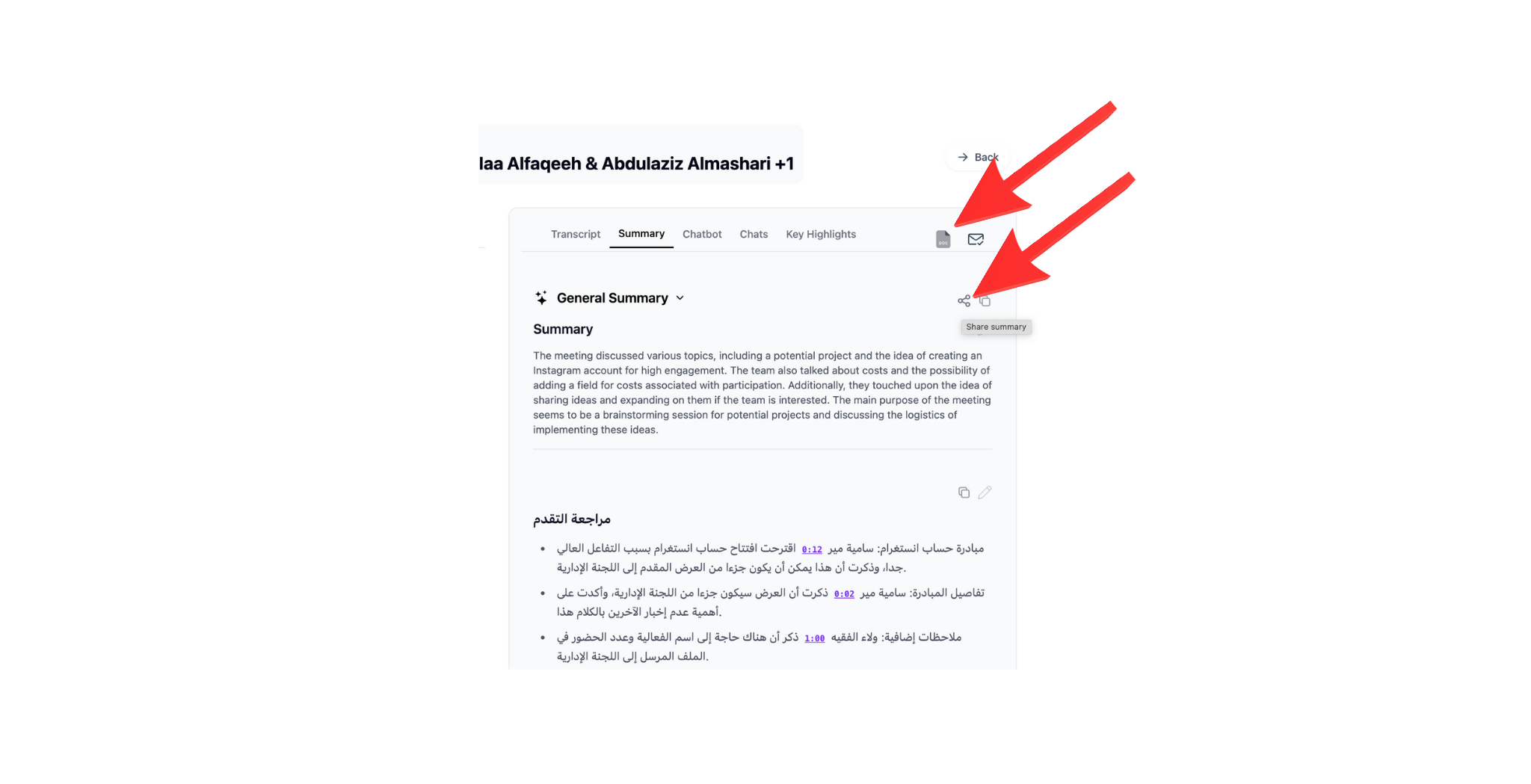
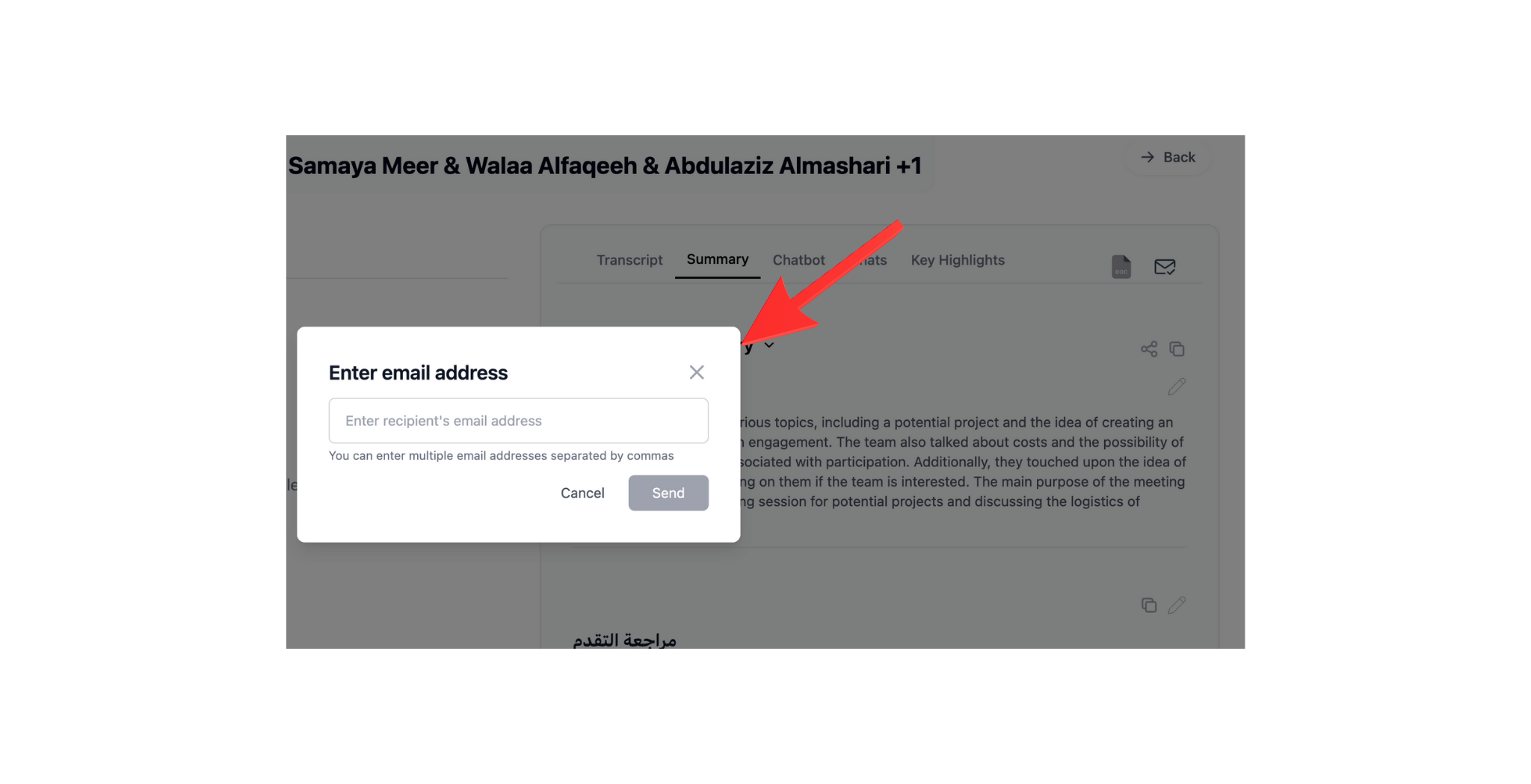
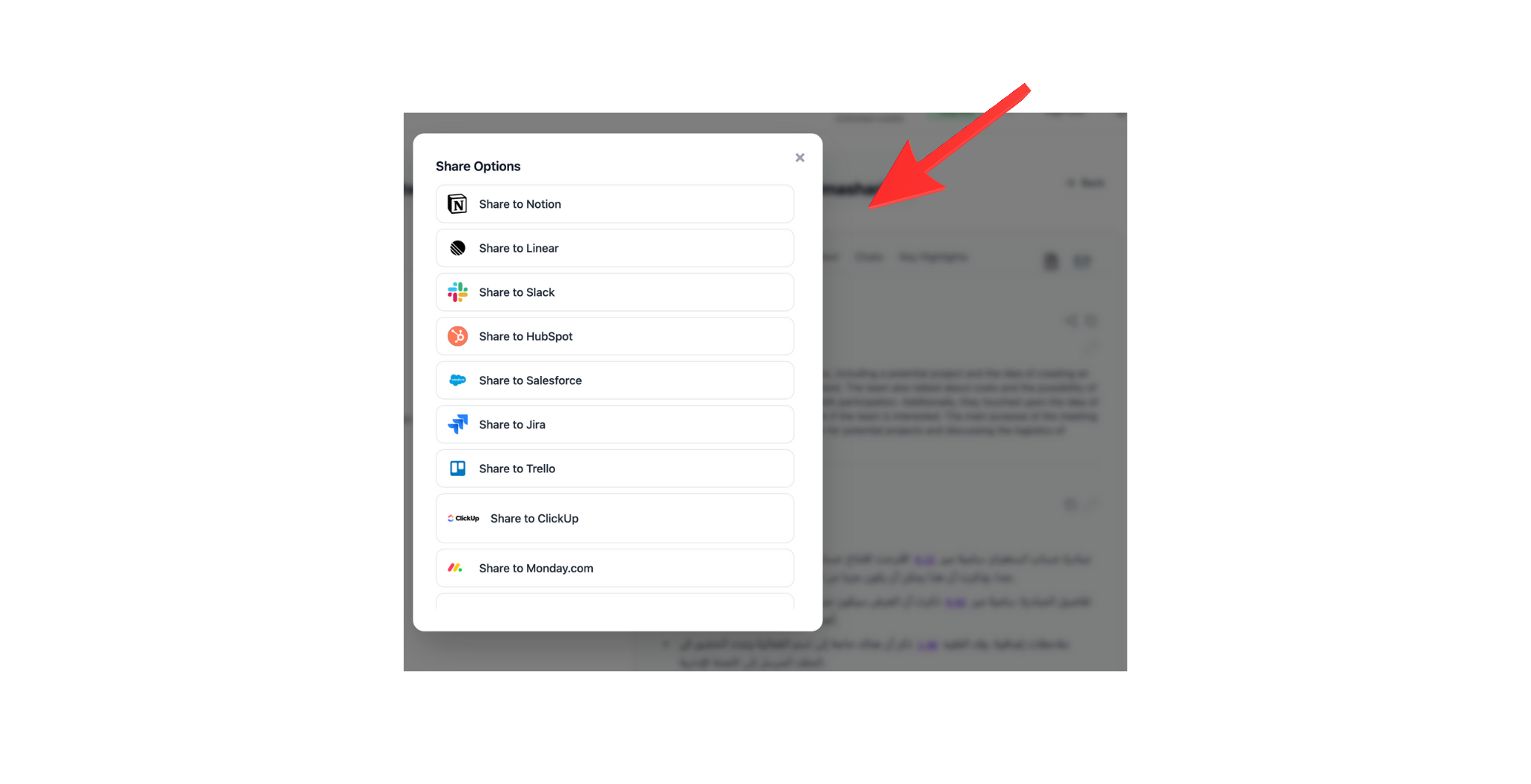
Available Formats
- Recording
- Transcript
- Summary
- Complete Package
Video Formats:
- MP4 (High Quality - 1080p)
- MP4 (Standard - 720p)
- WebM
- MP3 (High Quality)
- MP3 (Compressed)
- WAV (Uncompressed)
Bulk Export
Export All Meetings
- Settings → Data Export
- Click “Export All Data”
- Configure export:
- Date range: All time / Last year / Custom
- Content type: Everything / Specific items
- Format: ZIP archive
- Start export
- Receive email when ready (large exports may take time)
Export by Filter
Export specific subset of meetings:- Dashboard → Meetings
- Apply filters:
- Date range
- Participants
- Keywords/tags
- Meeting type
- Select meetings (or “Select All”)
- Click “Export Selected”
- Choose format and destination
Scheduled Exports
Automate regular exports:Setup
- Settings → Data Export → Scheduled Exports
- Create New Schedule
- Configure:
- Frequency (Daily/Weekly/Monthly)
- Content filter
- Format
- Delivery method
- Save schedule
Email Delivery
Send to Email
Export files sent to your inbox:- Select meeting or data to export
- Choose “Send via Email”
- Enter recipient email(s)
- Optional message
- Click “Send”
Email Options
Attachment Limits
Attachment Limits
Size limits:
- Direct attachment: Up to 25 MB
- Large files: Download link (expires in 7 days)
- Very large: Cloud storage link
Multiple Recipients
Multiple Recipients
Send to multiple people:
- Enter emails separated by commas
- Or select from workspace members
- Maximum: 20 recipients per send
Scheduled Delivery
Scheduled Delivery
Schedule email for later:
- Send immediately
- Schedule for specific time
- Recurring schedule (daily/weekly)
Email Content Example
Download Options
Direct Download
Download immediately to your device:- Click “Download”
- File saves to Downloads folder**
- Access offline
Download speeds depend on file size and internet connection.
- Transcript: Instant
- Summary: Instant
- Recording (30 min): ~2-5 minutes
- Recording (60 min): ~5-10 minutes
Cloud Storage Export
Save directly to cloud:- Google Drive
- Dropbox
- OneDrive
- Connect Google Drive integration
- Export → “Save to Google Drive”
- Choose folder
- Files upload automatically
Custom Export Settings
Customize Export Content
Fine-tune what’s included:- Export → Advanced Options
- Select components:
- ☑ Video recording
- ☑ Audio only
- ☑ Transcript with timestamps
- ☑ Transcript without timestamps
- ☑ Summary report
- ☑ Action items list
- ☑ Participant info
- ☑ Analytics data
- ☑ Comments & highlights
- Choose format for each
- Export
Transcript Customization
When exporting transcripts:Video/Audio Customization
Recording export options:- Quality: High / Medium / Low
- Range: Full / Custom time range
- Chapters: Include chapter markers
- Captions: Burn-in subtitles: Yes / No
- Format: MP4 / AVI / WebM
Share Exported Data
Generate Share Link
Create shareable download links:- Export meeting
- Click “Create Share Link”
- Configure access:
- Password protection: On / Off
- Expiration: 1 day / 7 days / 30 days / Never
- Download limit: Unlimited / 10 / 50 / 100
- Copy link
- Share with anyone
Access Control
Protect sensitive exports:- Password: Required to download
- Email verification: Recipient must verify email
- Watermark: Add watermark to videos
- DRM: Digital rights management (enterprise)
Data Format Details
JSON Export
For developers and integrations:CSV Export
Action items as spreadsheet:| Task | Assignee | Due Date | Priority | Status |
|---|---|---|---|---|
| Review designs | Sarah Jones | 2024-12-09 | High | Pending |
| Update docs | Mike Chen | 2024-12-15 | Medium | Pending |
Storage & Retention
Local Storage
Downloaded files:- Stored on your device
- Your responsibility to backup
- No expiration
- Take up local storage space
Cloud Storage
Files in cloud storage:- Subject to retention policy
- Automatically backed up
- Accessible from anywhere
- Count toward storage quota
Troubleshooting
Export failing or taking too long
Export failing or taking too long
Solutions:
- Break into smaller exports
- Use date range filters
- Try different time (off-peak hours)
- Check internet connection
- Contact support for large exports
Downloaded file won't open
Downloaded file won't open
Check:
- File downloaded completely
- Correct application to open file
- File isn’t corrupted (re-download)
- Format is supported by your device
Email not received
Email not received
Verify:
- Check spam/junk folder
- Email address is correct
- Export has finished processing
- Inbox isn’t full
Share link not working
Share link not working
Best Practices
Regular Backups
Schedule weekly/monthly exports for backup
Organized Storage
Use consistent naming and folder structure
Secure Sharing
Always use password protection for sensitive data
Format Selection
Choose formats compatible with your workflow
Next Steps
Cloud Integrations
Set up automatic cloud storage
API Access
Access data programmatically