
Documentation Index
Fetch the complete documentation index at: https://docs.taqriry.ai/llms.txt
Use this file to discover all available pages before exploring further.
Meeting Templates
Create and customize templates to control how your meeting summaries are formatted and what information is highlighted.What Are Meeting Templates?
Templates define:- Structure of meeting summaries
- Which sections to include/exclude
- How information is presented
- Email format and content
- Action item formatting
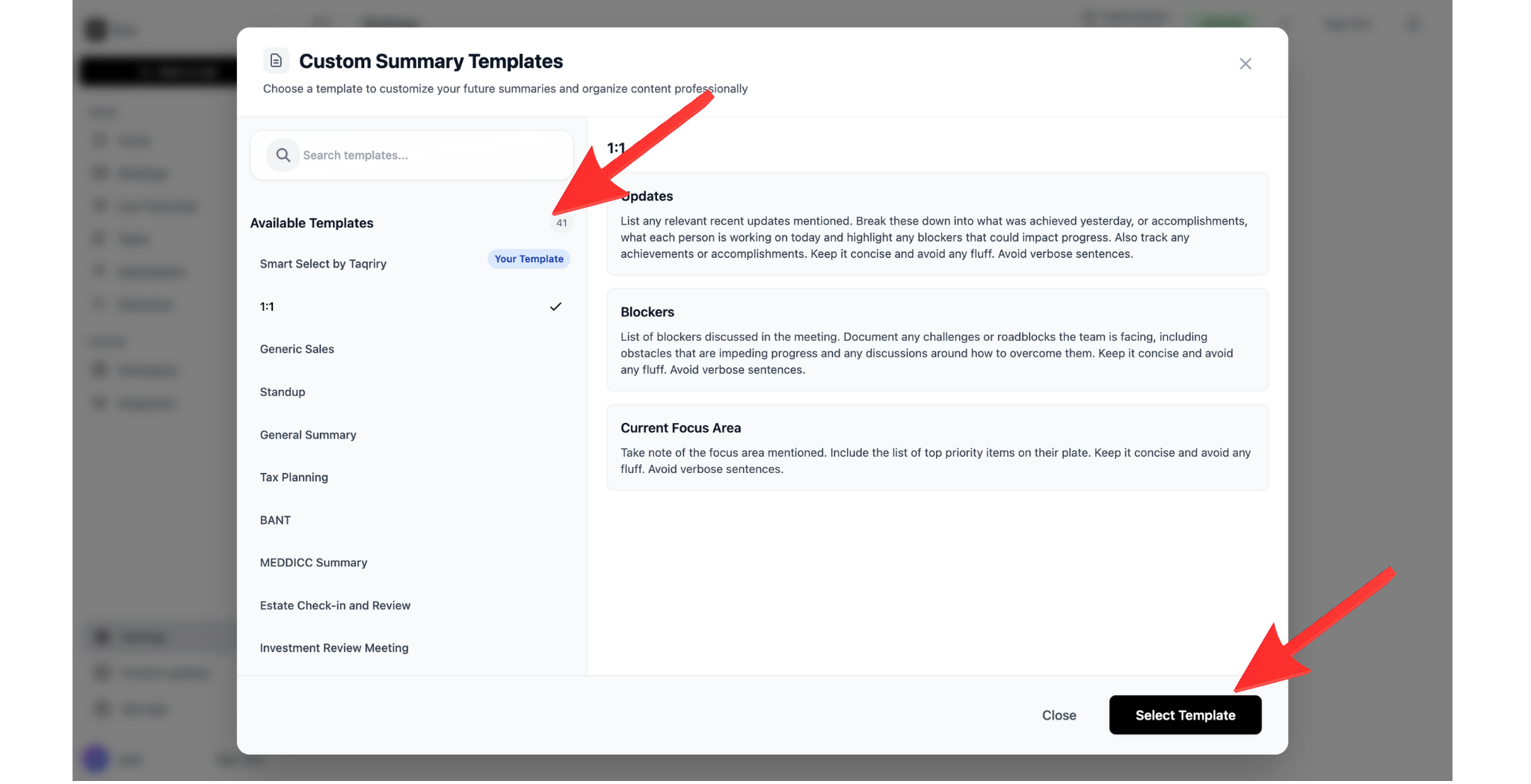
Pre-built Templates
Choose from ready-made templates:Executive Summary
Brief, high-level overview for busy executives
Detailed Report
Comprehensive summary with all details
Action Items Focus
Emphasizes tasks and next steps
Sales Call
Optimized for sales conversations
Technical Review
Structured for engineering meetings
Client Meeting
Professional format for client interactions
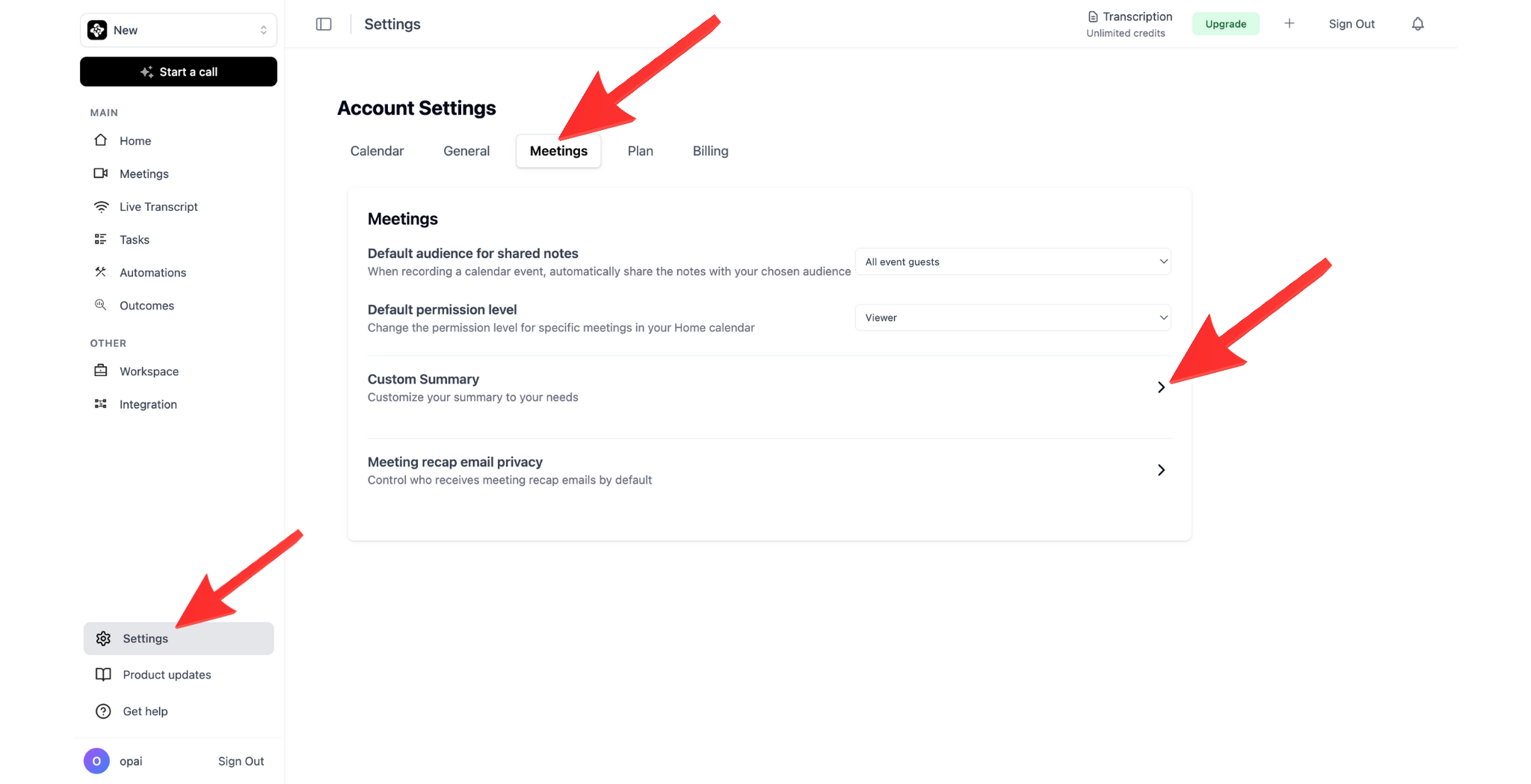
Accessing Templates
View Available Templates
All new meetings will use your selected default template unless overridden.
Creating Custom Templates
Template Builder
Build templates from scratch:- Settings → Templates → Create New
- Name your template
- Choose base structure or start blank
- Add/remove sections
- Configure each section
- Preview and save
Sections You Can Include
- Summary Sections
- Analytics Sections
- Technical Sections
- Custom Sections
- Meeting Overview: Title, date, participants
- Executive Summary: Brief overview
- Key Topics: Main discussion points
- Decisions Made: Conclusions reached
- Action Items: Tasks with owners
- Next Steps: Follow-up actions
- Questions Raised: Unresolved questions
- Important Quotes: Notable statements
Section Configuration
For each section, configure:Template Examples
Executive Summary Template
Sales Call Template
Technical Review Template
Using Templates
Apply Template to Meeting
When Scheduling
- Create new meeting
- Expand “Advanced Options”
- Select “Template”
- Choose from dropdown
- Save meeting
For Existing Meeting
- Open past meeting
- Click “Regenerate Summary”
- Choose different template
- Click “Apply Template”
Template Override
Use different template for specific meeting:- During meeting creation/edit
- “Template” dropdown
- Select override template
- This meeting only uses selected template
Advanced Customization
Conditional Logic
Show sections based on conditions:AI-Powered Fields
Create smart fields that use AI:- Template Editor → Add Field
- Choose “AI-Generated Field”
- Write AI prompt:
- Set display format
- Save field
Multi-Language Templates
Create templates in different languages:- Template Editor → Language
- Add language version
- Translate section names
- Adjust formatting for language
- Save language variant
Template Management
Organize Templates
Create categories:- Settings → Templates → Organize
- Create folders:
- By team (Sales, Engineering, HR)
- By type (External, Internal)
- By detail level (Brief, Standard, Detailed)
- Drag templates to folders
Sharing Templates
Within Workspace
- Template → Share
- Choose “Share with Workspace”
- Set permissions:
- View only
- Can use
- Can edit
- Share
Export Template
- Template → Export
- Format: JSON or YAML
- Download template file
- Share file with others
Import Template
- Settings → Templates → Import
- Upload template file
- Review and adjust
- Save to library
Version Control
Track template changes:- Template → Version History
- View all versions
- Preview version
- Restore previous version if needed
- Compare versions side-by-side
Best Practices
Start Simple
Begin with pre-built template and customize gradually
Test First
Try template with test meeting before using in production
Get Feedback
Share draft templates with team for input
Iterate
Continuously improve based on usage
Template Gallery
Browse community templates:- Settings → Templates → Gallery
- Filter by:
- Industry
- Meeting type
- Popularity
- Rating
- Preview template
- Install to your library
Troubleshooting
Template not applying correctly
Template not applying correctly
Check:
- Template is saved and published
- No conflicting templates set
- Meeting has sufficient data for template
Missing sections in output
Missing sections in output
Possible causes:
- Section set to conditional display
- Not enough relevant content in meeting
- Section disabled in email version
AI fields not generating
AI fields not generating
Verify:
- AI prompt is clear and specific
- Meeting has relevant content
- Field is enabled
Can't edit shared template
Can't edit shared template
Next Steps
Email Settings
Configure email delivery for templates
Automation
Automate template application with integrations